









What is Delete Pages?
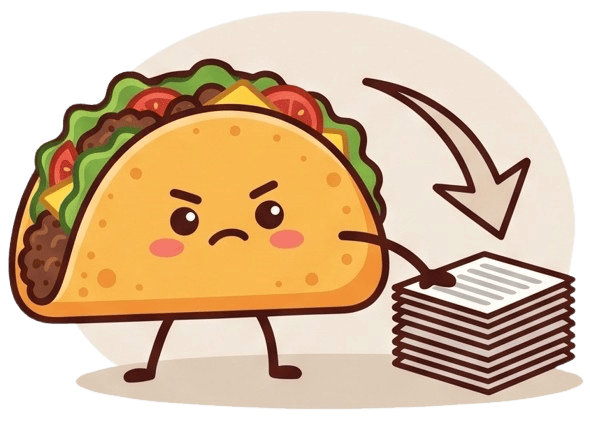
The Delete Pages tool allows you to quickly remove unwanted, blank, or irrelevant pages from your PDF document. By trimming down your file, you not only make the document cleaner and more professional but also reduce its overall file size for easier sharing and storage.
100% Private & Secure
We believe your data belongs to you. The deletion of pages occurs directly on your machine through browser-based local processing. Zero bytes of your document are ever sent to our servers, ensuring that your sensitive information remains completely safe from unauthorized access or data breaches.
Frequently Asked Questions
Q: How do I know which pages to delete?
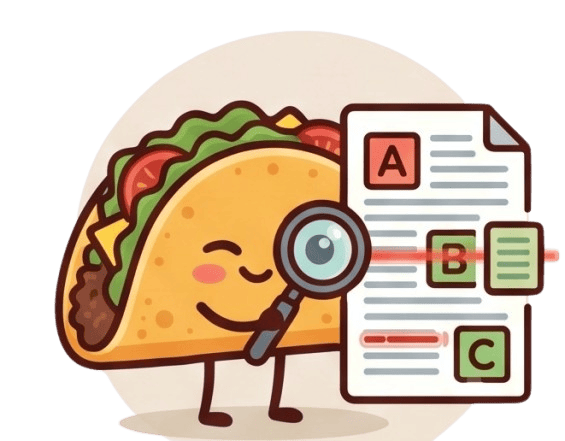
A: Our tool provides a convenient visual preview of all pages, allowing you to visually identify and select the exact pages you wish to remove.
Q: Does deleting pages reduce the file size?
A: Yes, removing pages will proportionally decrease the file size, especially if the deleted pages contained heavy images or complex graphics.