










What is Extract Pages?
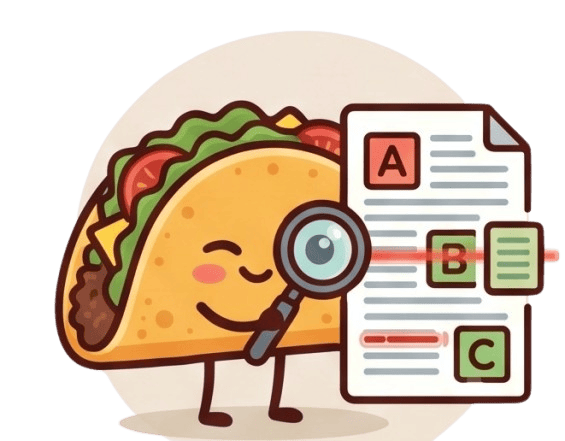
Extract Pages is a precision tool designed to pull out specific, highly relevant pages from a larger PDF to create a brand new document. Instead of sending a 100-page report to a client, you can extract just the 5-page executive summary. It is the perfect utility for isolating crucial information.
100% Private & Secure
TacoPDF utilizes client-side architecture to perform page extraction. This means the heavy lifting is done by your device's processor, not a remote server. You can confidently extract pages from classified business documents or private medical records knowing that the data never leaves your local environment.
Frequently Asked Questions
Q: What happens to the original PDF?
A: Your original PDF remains completely untouched. The tool generates a new PDF containing only your extracted pages.
Q: Can I reorder the extracted pages?
A: Currently, the tool extracts pages in their original sequential order, but you can use our Merge tool afterward if you need to rearrange them.