











What is Merge PDF?
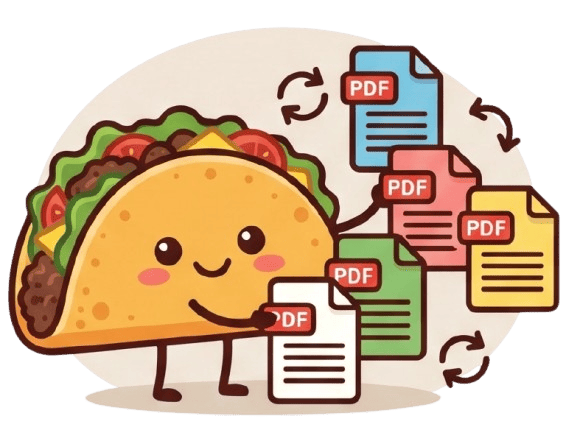
The Merge PDF tool allows you to combine multiple separate PDF documents into a single, unified file. Whether you are compiling monthly reports, joining scanned invoices, or merging academic papers, this tool makes document organization effortless. You can rearrange the order of your files before merging, ensuring the final document flows exactly as you intended.
100% Private & Secure
Unlike traditional online PDF mergers that upload your sensitive documents to remote servers, TacoPDF processes everything entirely within your web browser. Your files never leave your device, ensuring maximum privacy and zero risk of data interception. This local processing means you can safely merge confidential business contracts or personal records without compromising security.
Frequently Asked Questions
Q: Is there a limit to how many PDFs I can merge?
A: Because processing happens locally on your device's memory, you can merge as many files as your device can handle, with no arbitrary limits imposed by our servers.
Q: Does merging reduce the quality of my PDFs?
A: No, the merging process strictly concatenates the existing pages without altering their original resolution, text quality, or formatting.